Stop Guessing: How to Use Google Search Console
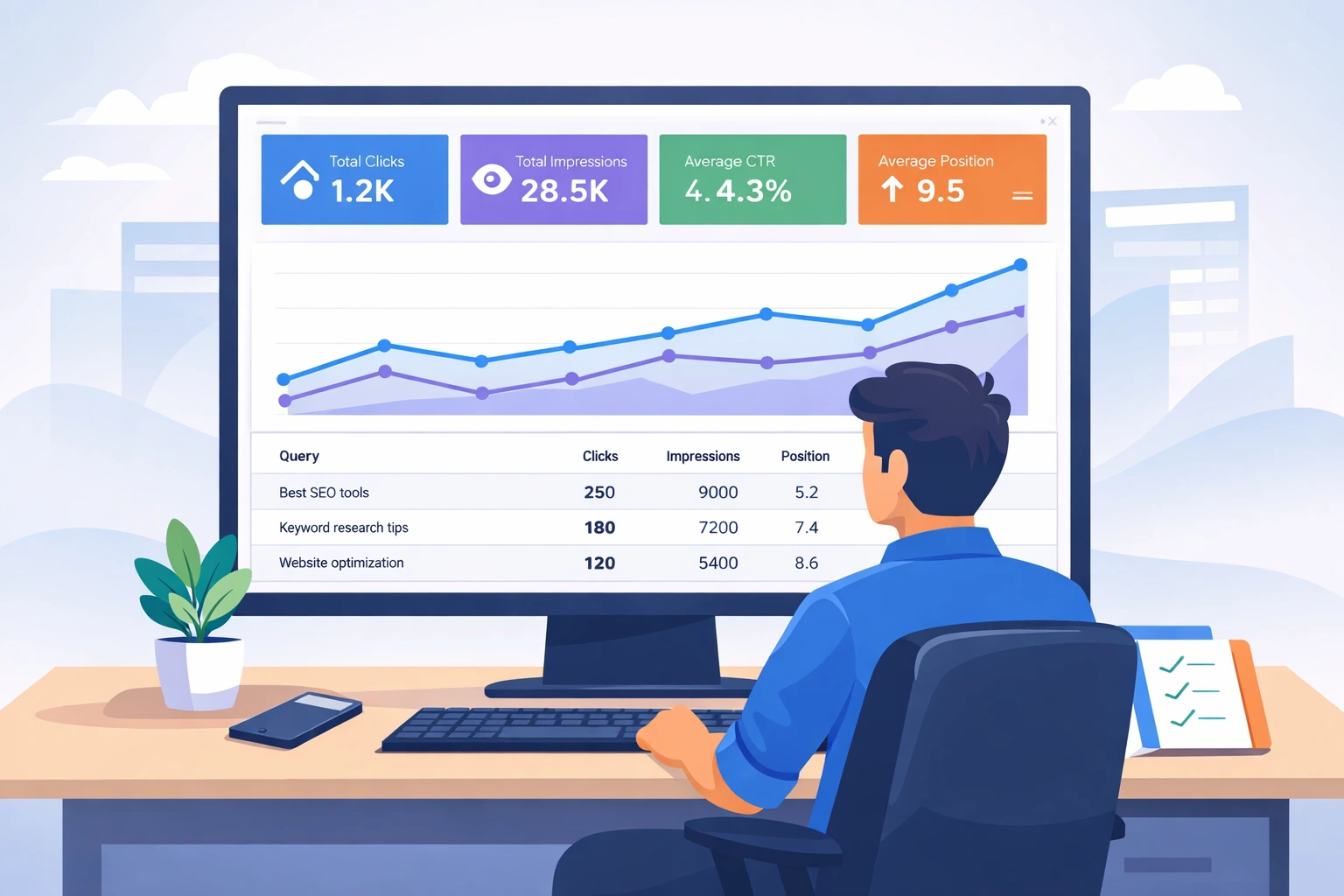
To use Google Search Console for SEO, do three things every week. First, open the Performance report and find queries with high impressions and low clicks. Next, improve the page title and snippet for those queries. Then, check Page indexing to fix pages that Google will not index. Use URL Inspection only for priority pages after you have fixed the issues. This guide shows how to use Google Search Console step-by-step.
Table of Contents
What is Google Search Console? A free tool for search and indexing.
If you are still new to SEO, start with our guide on what is SEO, so this walkthrough feels easier.
The fastest win comes from CTR. In Search Console, sort queries by impressions, pick the ones with low CTR, and rewrite titles to match intent. Then push page-two queries up by improving the ranking page. Finally, fix indexing blockers so your best pages can rank. That is the core of how to use Google Search Console.
Search Console reports show clicks, impressions, CTR, and average position. They also show indexing status and URL-level details. This data helps you choose actions that Google already supports.
Search Console data can lag. Indexing requests have quotas. Google also skips some URLs. So focus on key pages and fix root causes.
How to use Google Search Console after setup is ready
This blog focuses on usage. Still, two setup checks matter. They prevent missing data. Google Search Console also works well with other best SEO tools you already use.
1. Confirm you track the right site version.
If you used a URL-prefix property, confirm it matches your live site. A mismatch can hide data. Use a Domain property if you have DNS access.
2. Confirm your sitemap is submitted.
Go to Sitemaps and submit your sitemap URL. Keep only canonical, indexable URLs. This is a key part of Google Search Console setup.
How to use Google Search Console Performance report to grow traffic
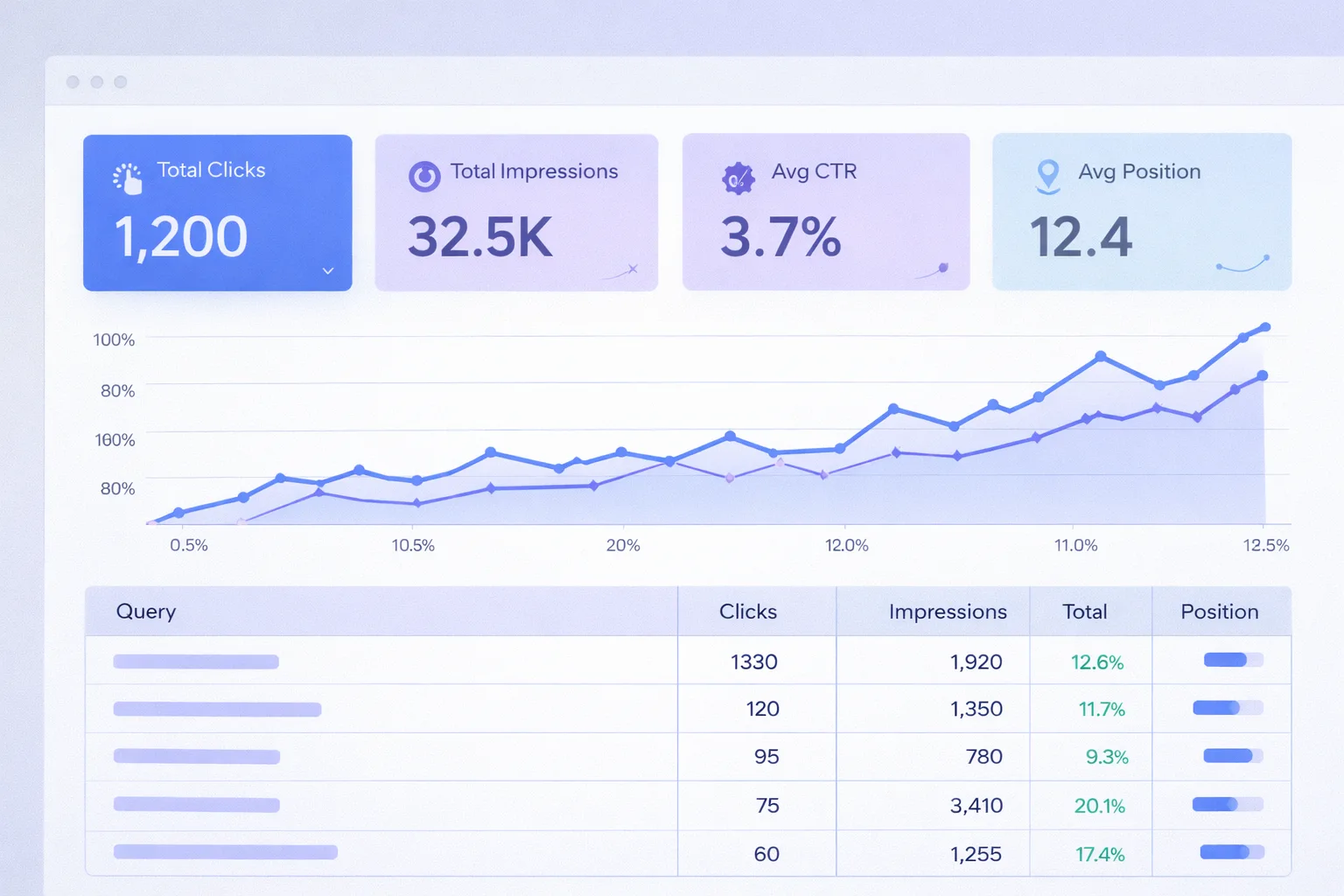
The Performance report is your SEO control room. It shows what people searched and how your site performed.
Find CTR wins from deep impressions.
Low CTR with deep impressions means you have visibility but not clicks. This is how to use Google Search Console for quick CTR gains.
Steps
- Open Performance.
- Set the date to the last 28 days.
- Open Queries.
- Sort by Impressions.
- Shortlist queries with high impressions and low CTR.
What to change
- Rewrite the page title to match query intent.
- Add a clear meta description that matches the page.
- Improve the first paragraph so it answers faster.
These tweaks sit at the core of strong on-page SEO and usually deliver fast wins.
Push page-two queries into page one.
These queries already trust your site. This is how to use Google Search Console to find page-two wins.
Steps
- In Queries, filter the Average position from 8 to 20.
- Sort by impressions.
- Click a query, then open the Pages tab.
- Note the page Google ranks for that query.
What to do on that page
- Add a short section that answers the query first.
- Improve headings so they match real searches.
- Add internal links from related pages.
- Add examples, steps, or a checklist.
If you want to go deeper into planning topics, combine this query data with a structured keyword analysis in SEO.
Improve one page using the page filter
This method keeps you focused. It also avoids random edits.
Steps
- In Performance, click + New.
- Select Page and choose your URL.
- Review the top queries for that page.
Now edit the page for the queries it already ranks for. Add missing answers. Remove fluff.
Diagnose traffic drops using comparisons
Do this before you change content. It tells you what broke.
Steps
- Open Performance.
- Compare the last 28 days vs previous 28 days.
- Open Pages.
- Sort by click difference.
How to read the drop
- Impressions down: Google shows you less, or demand fell.
- CTR down: your snippet lost the click.
- Position down: relevance or competition changed.
How to use Google Search Console to fix indexing issues
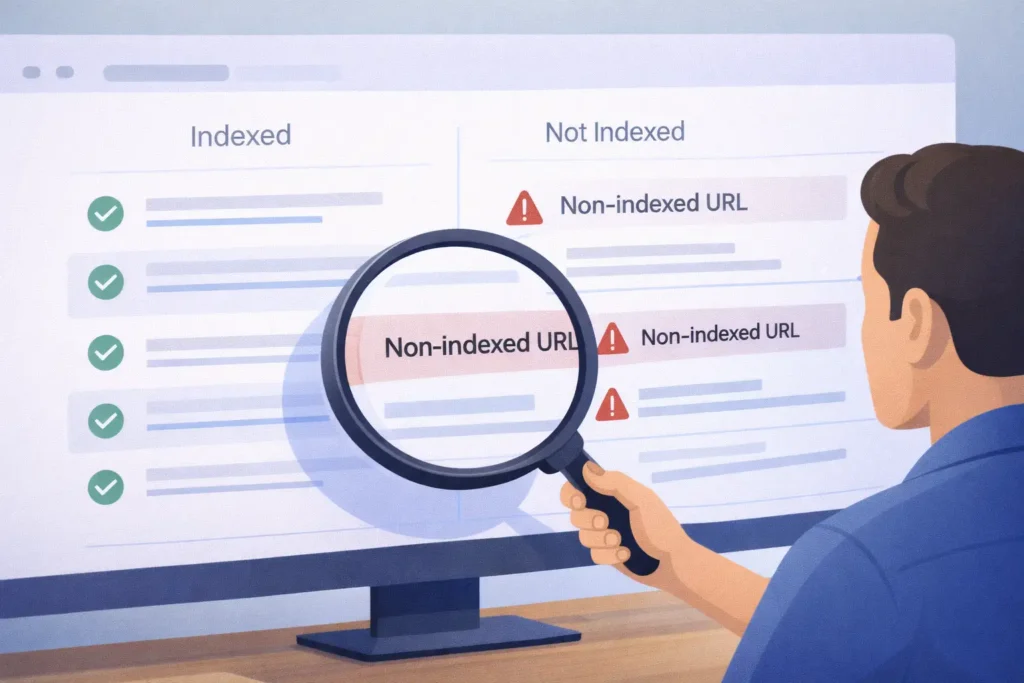
If a page is not indexed, it cannot appear in results. So indexing work is not optional. These are core Google Search Console uses. Many of these fixes sit inside your broader technical SEO work.
Read the Page indexing report like a priority list
Open Indexing > Pages to see the Page indexing report. Start with key pages, not all URLs.
Common statuses and fixes:
Crawled – currently not indexed
- Google crawled the page but did not index it.
- Improve usefulness, clarity, and uniqueness.
- Add internal links from strong pages.
Discovered – currently not indexed
- Google found the URL but has not crawled it.
- Add internal links and fix crawl paths.
- Remove low-value URL clutter where possible.
Duplicate, Google chose a different canonical
- Google picked another URL as primary.
- Fix canonicals if needed.
- Link to the preferred page from your site.
Blocked by robots.txt
- Google cannot crawl the URL.
- Remove the block for pages you want indexed.
Noindex detected
- The page asks Google to skip indexing.
- Remove the noindex directive if the page should rank.
Soft 404
- Google thinks the page lacks value.
- Add real content or redirect it.
Use URL Inspection to debug one page
The URL Inspection tool gives URL-level signals. It helps you confirm the real issue.
Steps
- Paste the full URL into the top bar.
- Check if Google indexed the URL.
- Check the canonical Google selected.
- Run a live test after big changes.
- Request indexing only after you fix issues.
Important rule
Do not spam request indexing. It will not speed crawling. Use it for key URLs only.
Small table: pick the right report for the job
Use this table when you feel lost. It keeps your workflow clear.
|
Goal |
Report to use |
Best habit |
|---|---|---|
|
Find keywords, and CTR wins |
Performance |
Weekly |
|
Fix pages not showing on Google |
Page indexing |
Weekly |
|
Check one URL and request indexing |
URL Inspection |
As needed |
|
Catch sitemap errors |
Sitemaps |
Monthly |
Turn Google Search Console use into a weekly routine
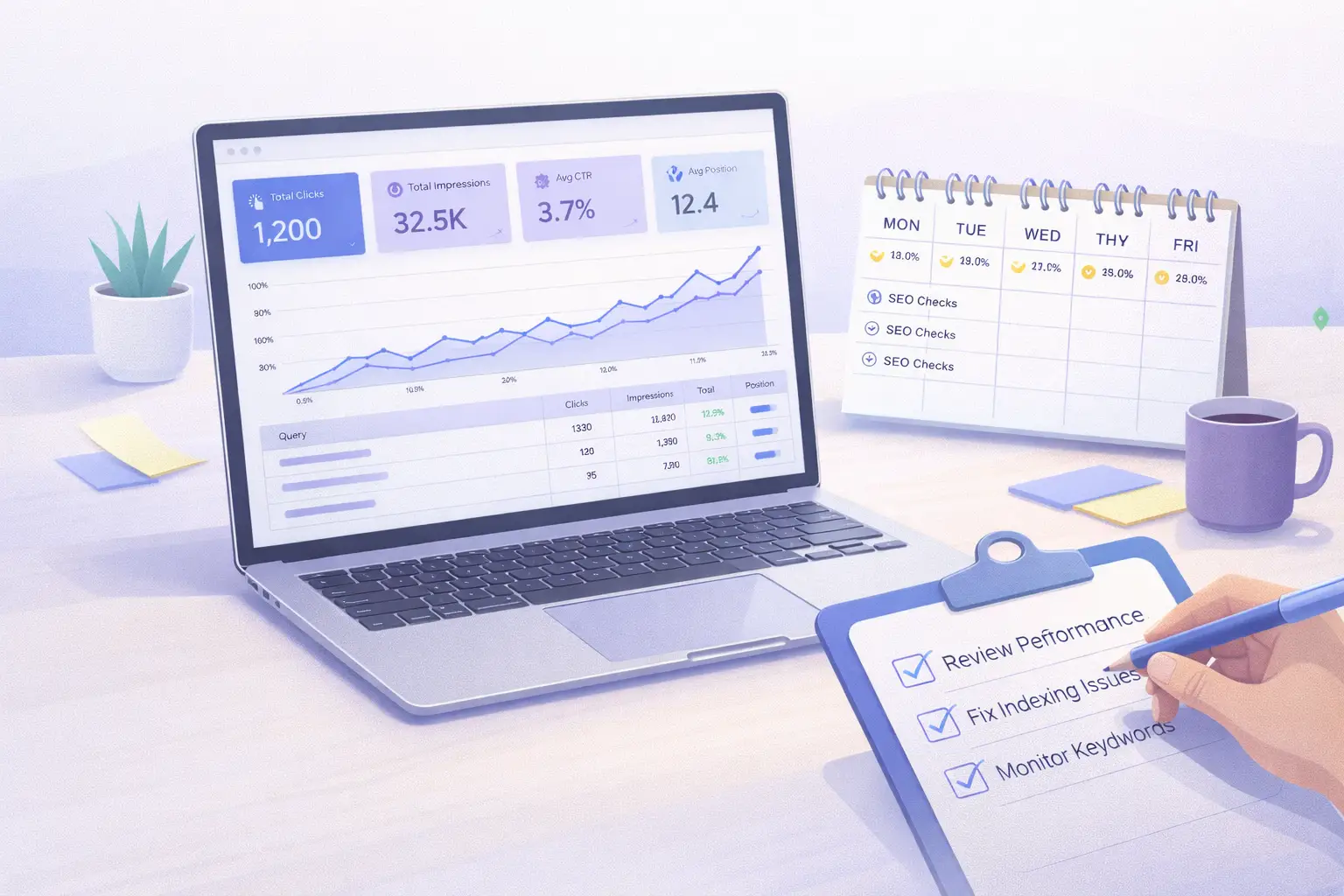
Most people open Search Console only during a crisis. That slows growth. Once you know how to use Google Search Console weekly, SEO becomes more predictable.
Weekly routine (20 minutes)
- Performance: check clicks and impressions trend.
- Queries: find deep impressions with low CTR.
- Pages: find the top losing pages.
- Page indexing: scan for new spikes.
- Fix one item and track it next week.
Monthly mini audit (45 minutes)
- List your top 10 pages by clicks.
- Refresh pages that fell for two months.
- Fix indexing issues on money pages first.
- Export key data for reporting.
Brand Take from Digirank
Most teams chase new keywords. They ignore the easiest gains in Search Console. That is why results feel slow.
Treat Search Console like a weekly checklist. Focus on indexing, CTR, and relevance. Keep changes small and track impact. This is how to use Google Search Console like an SEO pro, without overthinking.
FAQs about how to use Google Search Console
1. Is Google Search Console free?
Yes. Google Search Console is free for website owners.
2. How long does Google Search Console take to update?
It depends. Some reports update within hours. Others can lag by days.
3. Why does Google Search Console show no data?
You may have the wrong property, low clicks, or delayed reporting. Check your site version and date range.
4. How do I submit a sitemap in the Google Search Console setup?
Open Sitemaps, enter your sitemap URL, and submit it. Use a sitemap with only indexable URLs.
5. What does crawled – currently not indexed mean?
Google crawled the page but did not index it. Improve content quality and internal links.
6. How often should I check Search Console?
Check it weekly. Check it more often after major changes.
7. How far back does Search Console data go?
The interface shows up to 16 months of performance data, as confirmed in Google’s new Search Console update. Export data if you need more.
Make Google Search Console Your Weekly SEO Habit !
Google Search Console is a tool you use, not a report you read.
Start with the Performance report and fix CTR first. Then push page-two queries up with better content. Finally, fix indexing blockers so your best pages can rank.
Need help with Search Console?
If clicks stay flat or pages do not index, you need a clear plan. Digirank can audit your Search Console, fix blockers, and design SEO services in Bangalore that use this data to grow traffic.