
How to Link Google Business Profile to GA4
If your business depends on local enquiries, phone calls, website visits, direction requests, bookings, or walk-ins, knowing how to link Google Business Profile to GA4 is important because your Google Business Profile should not work separately from Google Analytics.
Table of Contents
Google Business Profile helps customers find your business on Google Search and Maps, while GA4 helps you understand how users interact with your website and connected business data. With GA4 Google Business Profile Integration, you can link Google Business Profile to GA4 and track important local actions in one place.
In this guide, we will explain how to link Google Business Profile to GA4 step by step, what permissions you need, and where to view the Business Profile report in GA4 after the connection is completed.
Why Link Google Business Profile to GA4?
For local SEO, this setup is very useful because it connects your Google Business Profile performance with your website analytics. Earlier, many businesses checked Google Business Profile data separately and GA4 data separately, which often made reporting incomplete.
When you link Google Business Profile to GA4, business owners and marketers can view important local business actions inside Google Analytics. This GA4 Google Business Profile Integration helps bring key GBP metrics into a dedicated reporting collection, including profile interactions, phone calls, bookings, direction requests, and website clicks. If you are working on local SEO or Google Business Profile optimization, this setup helps you understand whether your local visibility is turning into real customer actions.
With better Google Business Profile tracking, you can understand how your profile is helping your business generate real customer actions, such as:
- How many people called your business from Google
- How many users clicked your website from your profile
- How many people requested directions
- How many users interacted with your profile
- Whether your local SEO work is improving customer actions
For service businesses, clinics, restaurants, law firms, schools, stores, agencies, event venues, and local offices, the Business Profile report in GA4 can directly support better marketing decisions.
Requirements to Link Google Business Profile to GA4

Before linking Google Business Profile to GA4, make sure you have the right access and are using the correct Google account. If the required permissions are missing, your Business Profile may not appear during the setup process.
Make sure you have:
- Editor access to the GA4 property
- Manager access to the Google Business Profile listing
- The correct Google account logged in
- The correct GA4 property selected
- The correct Business Profile listing available in your account
If the Business Profile does not appear while setting up the connection, the most common reason is an access issue. Use the same Google account that has access to both GA4 and the Google Business Profile, then try linking again.
Step-by-Step Process to Connect Google Business Profile with GA4
If you want to understand how to link Google Business Profile to GA4, the setup is simple when you follow the right steps. This GA4 Google Business Profile Integration helps you connect your Business Profile data with Google Analytics, making Google Business Profile tracking and local SEO reporting easier.
Step 1: Open the Correct GA4 Property
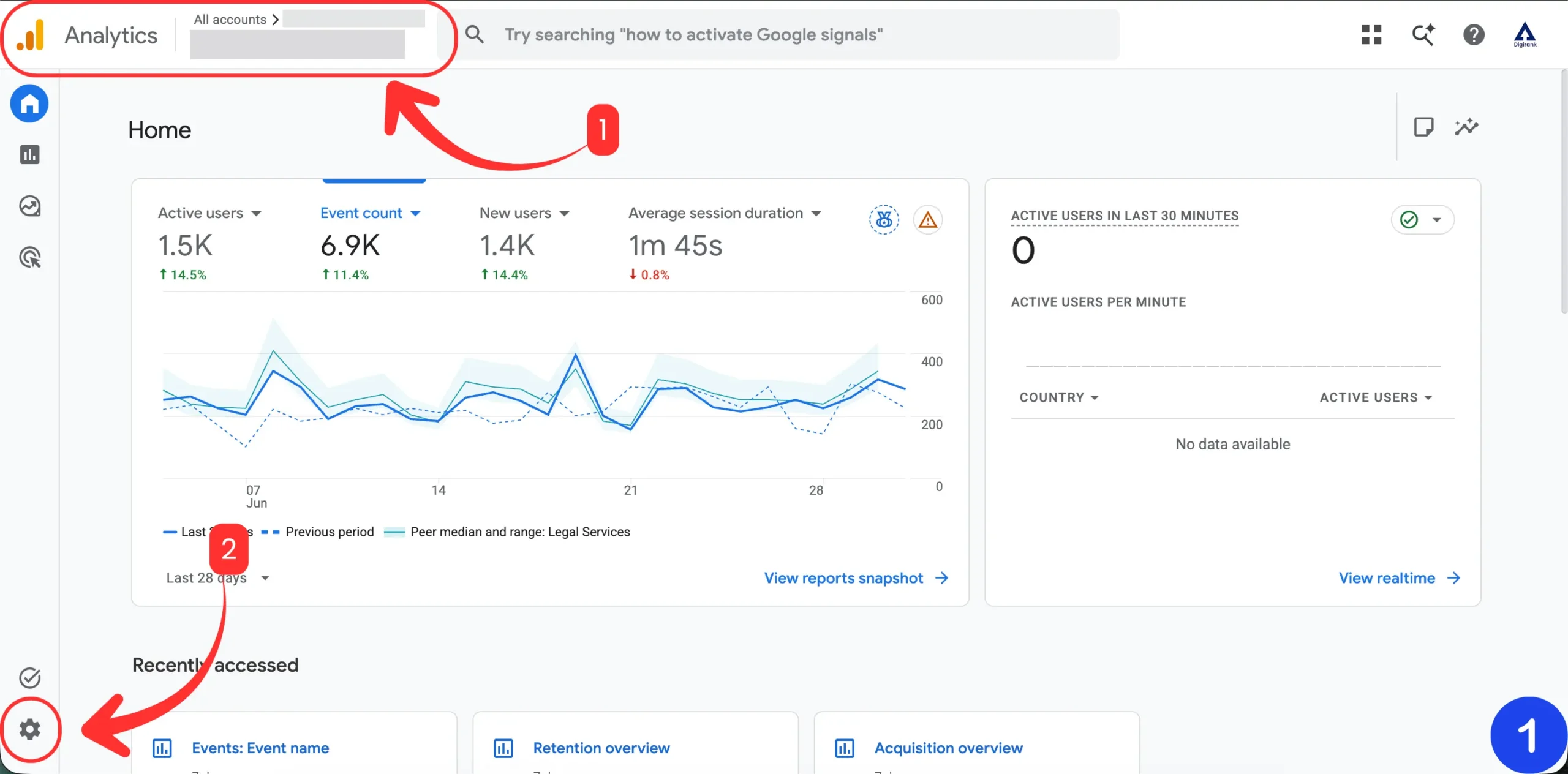
First, log in to Google Analytics and check the account and property name from the top-left corner. Make sure you are working inside the correct GA4 property, especially if you manage multiple client accounts.
Selecting the wrong property can create the connection for the wrong business, so confirm the property before moving ahead.
Step 2: Go to Admin
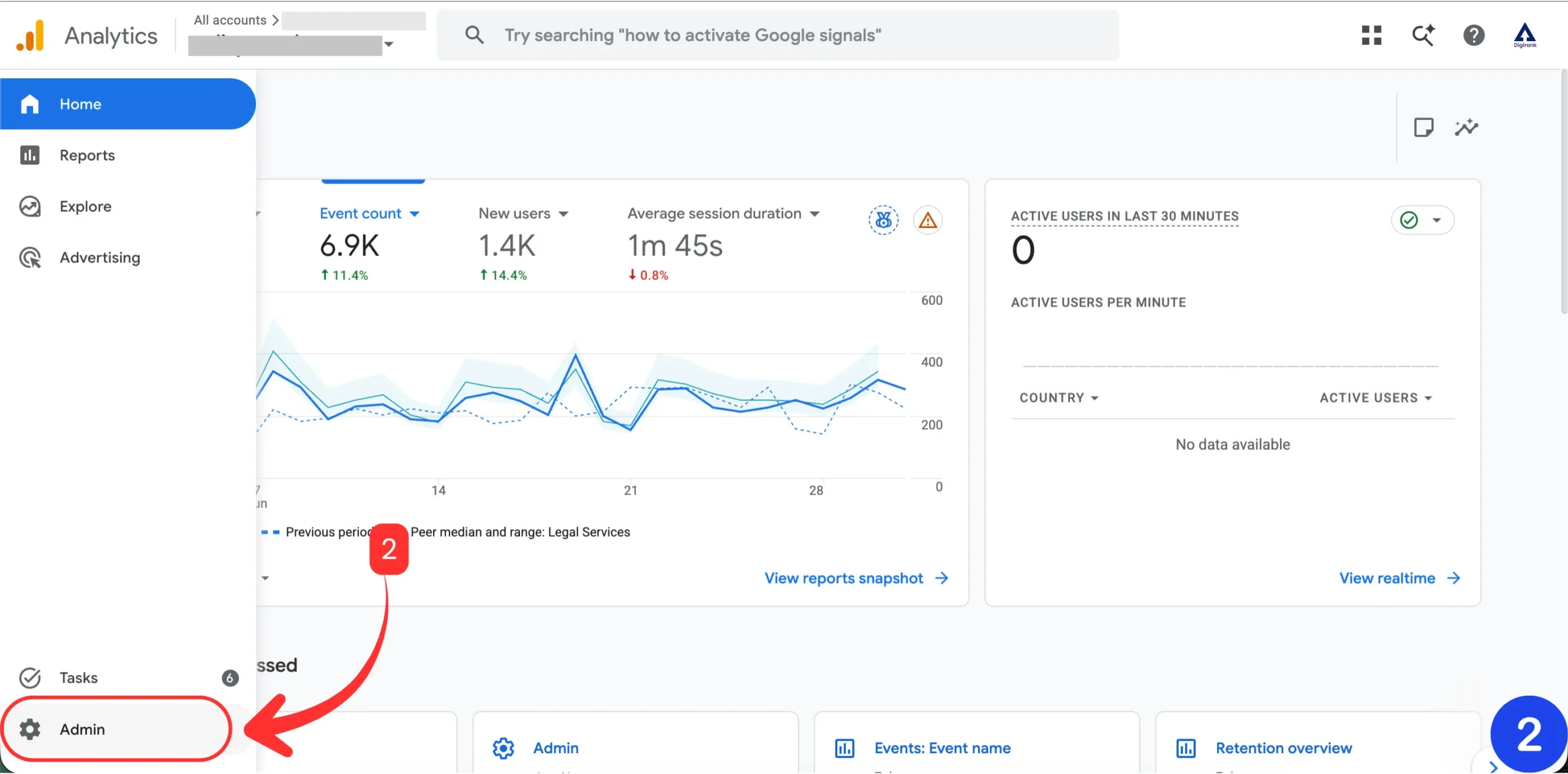
On the left-side menu, click the Admin icon. In GA4, the Admin option appears as a gear icon at the bottom-left side of the screen.
Once you click Admin, GA4 will open the settings area for the selected account and property.
Step 3: Open Product Links
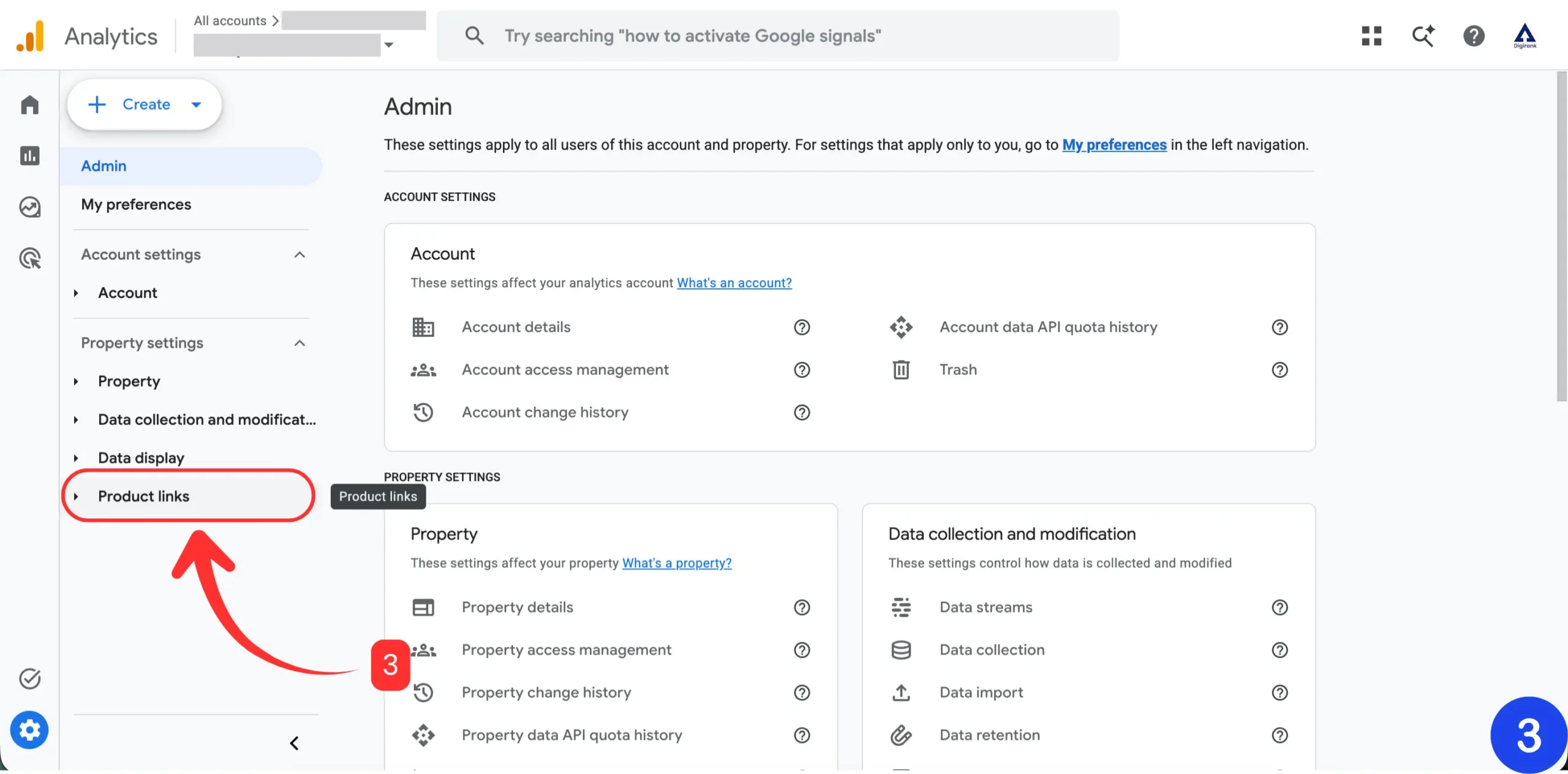
Inside the Admin panel, look for the Property settings section. Under this section, find Product links and click it to expand the available linking options. This is where GA4 allows you to connect other Google products with your analytics property.
Step 4: Select Google Business Profile Links
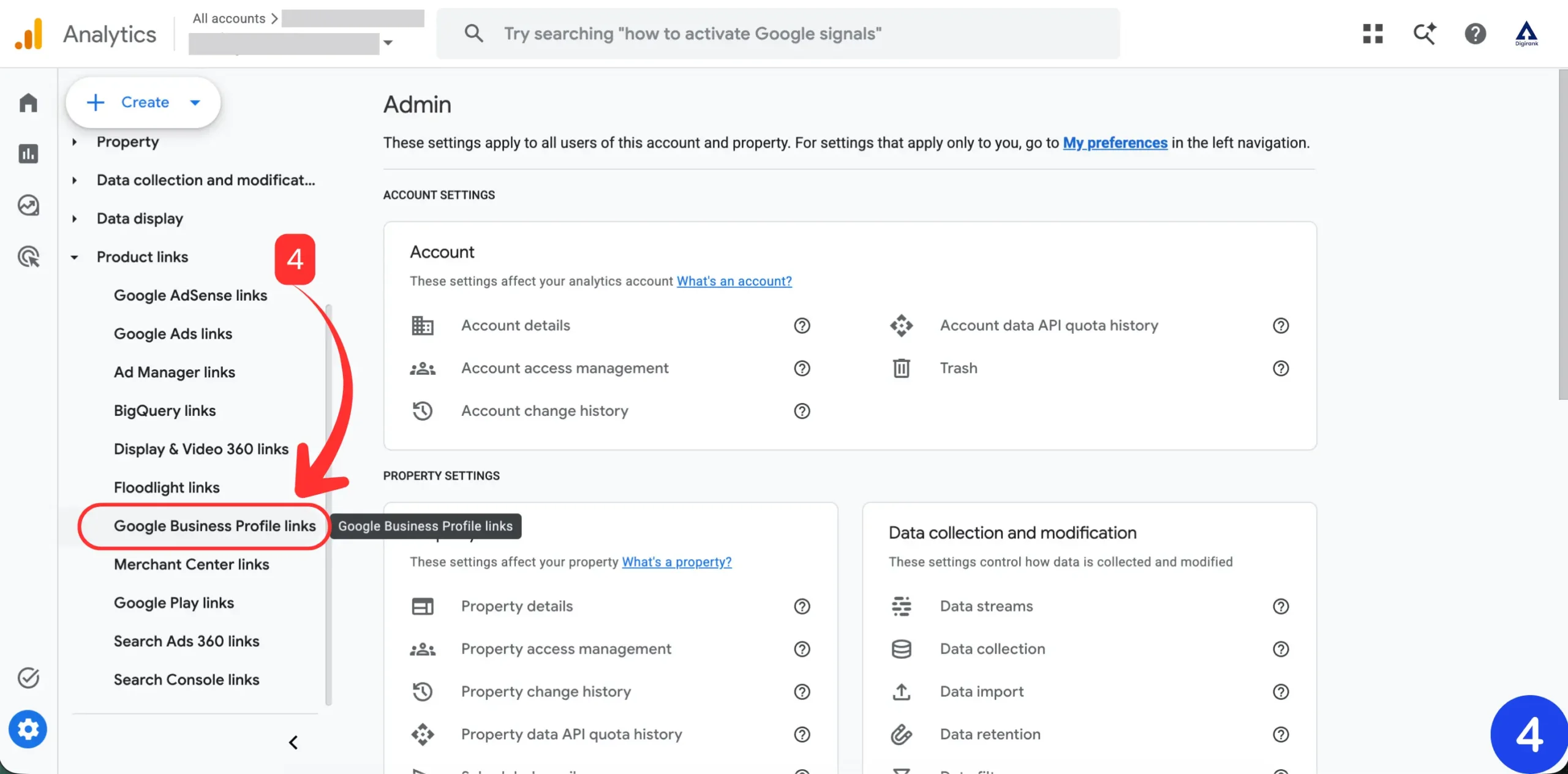
After expanding Product links, you will see different options such as Google Ads links, Search Console links, Merchant Center links, and Google Business Profile links.
Click Google Business Profile links to start the connection process.
Step 5: Click the Link Button
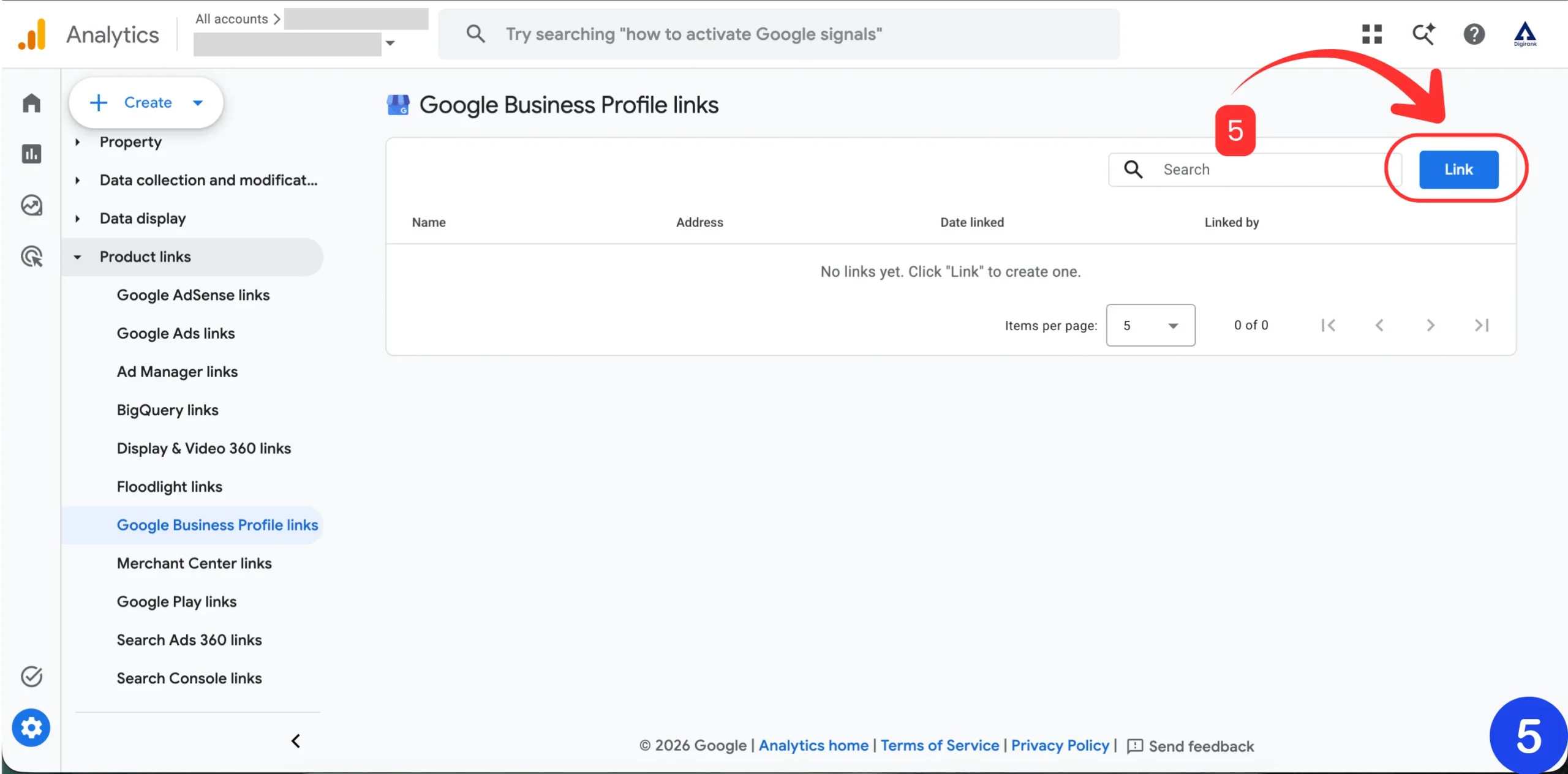
On the Google Business Profile links page, click the Link button on the top-right side.
If no profile is connected yet, GA4 may show that there are no existing links. Clicking Link will start the setup flow.
Step 6: Choose the Business Profile Listing
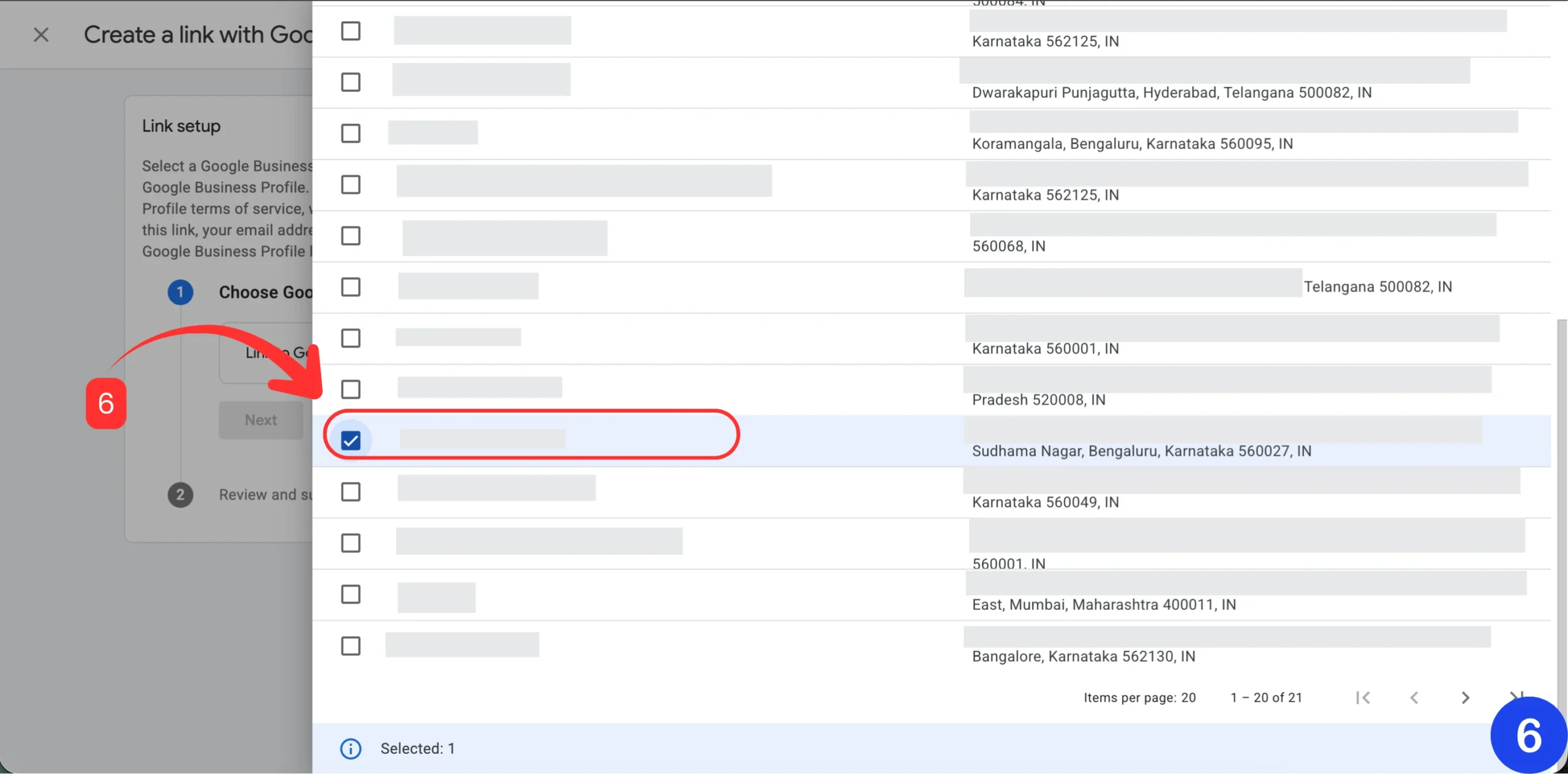
A new window will open where you can select the business listing you manage. Choose the correct profile from the available list. If you manage multiple listings, carefully check the business name and address before selecting the checkbox.
Step 7: Confirm the Selected Listing
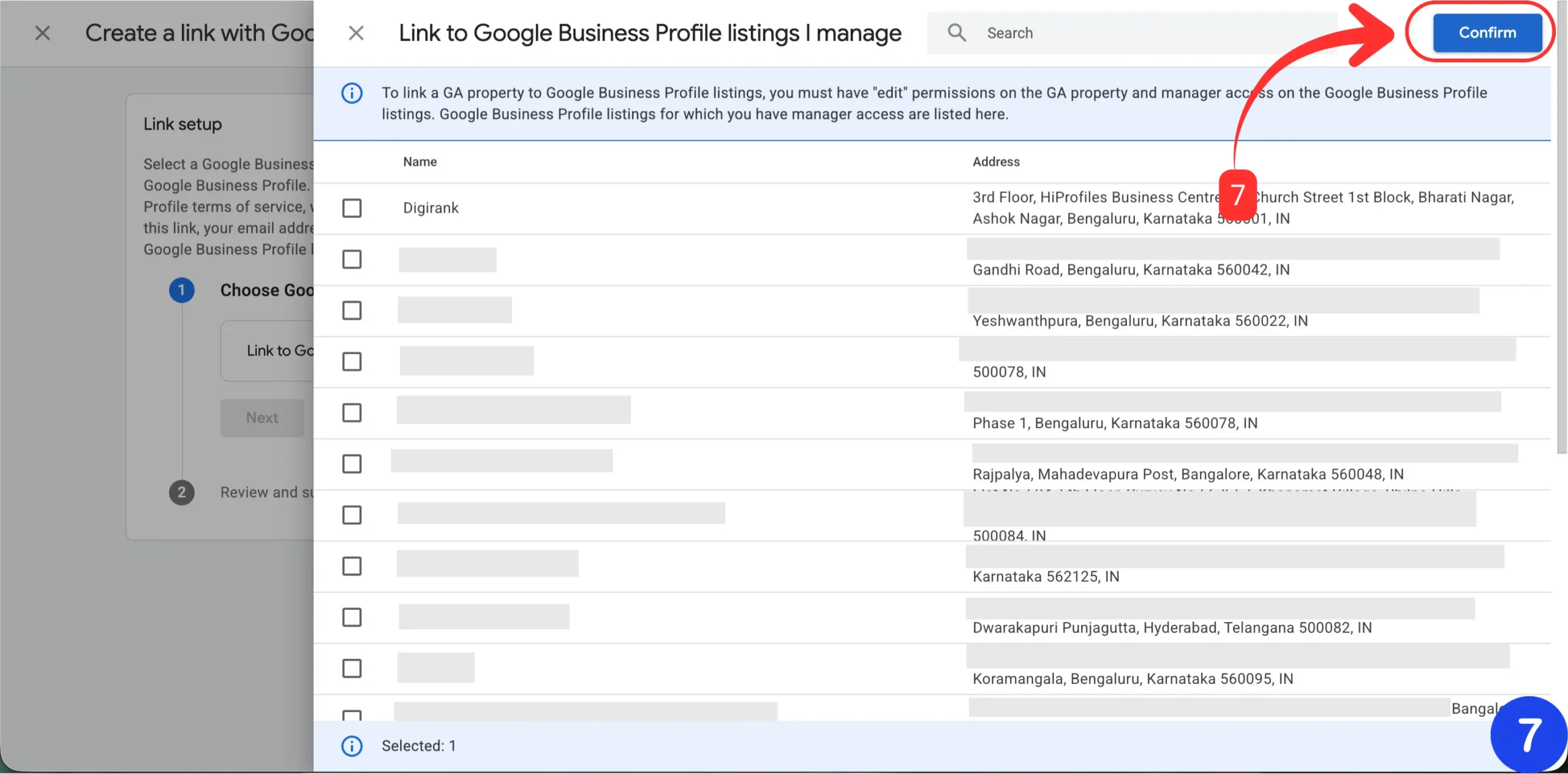
After selecting the correct listing, click Confirm. GA4 will add the selected profile to the setup screen. Check whether the displayed business name and address are correct before continuing.
Step 8: Click Next
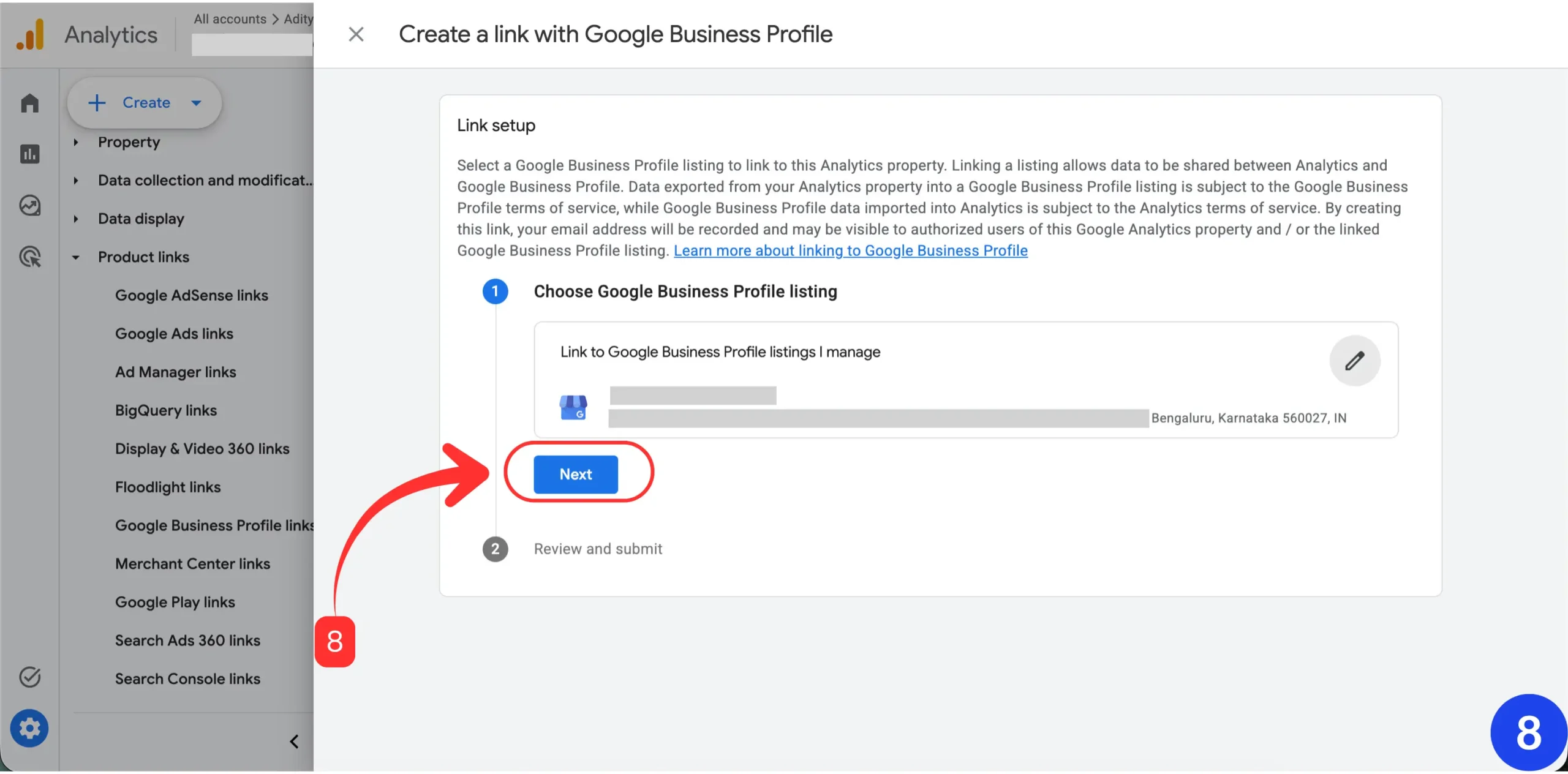
Once the correct listing is selected, click Next to move to the review step. Before going further, quickly verify the selected business details again to avoid connecting the wrong profile
Step 9: Review and Submit

In the final step, GA4 will show the selected business listing for review. If everything looks correct, click Submit. This completes the connection process.
Step 10: Check the Link Status
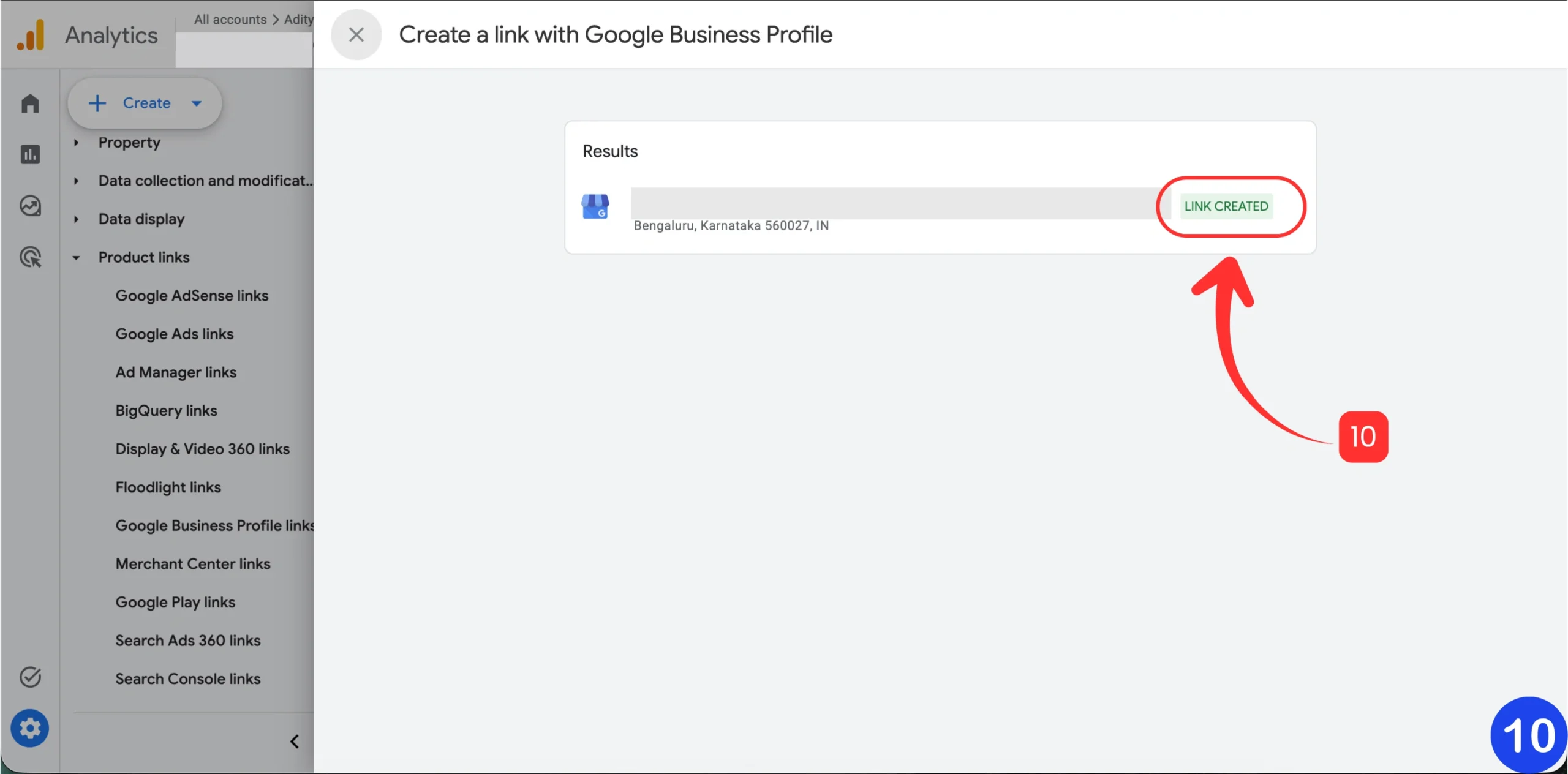
After submission, GA4 will show the result. If the setup is successful, you will see the Link Created status. This means your Google Business Profile has been successfully connected with your GA4 property.
Where to See Google Business Profile Reports in GA4
After linking Google Business Profile to GA4, you can view the report inside the Reports section of your GA4 property. This report helps you understand how people interact with your Business Profile from Google Search and Maps.
GA4 → Reports → Business Profile → Overview
The Business Profile report in GA4 shows important local performance data in one place, including:
- Profile interactions
- Phone calls
- Website clicks
- Direction requests
- Bookings
- Menu clicks
- Other local business actions
This makes reporting easier because business owners and marketers can review local business, website, and app performance from one central place instead of checking each platform separately.
Access the Reports Section in GA4
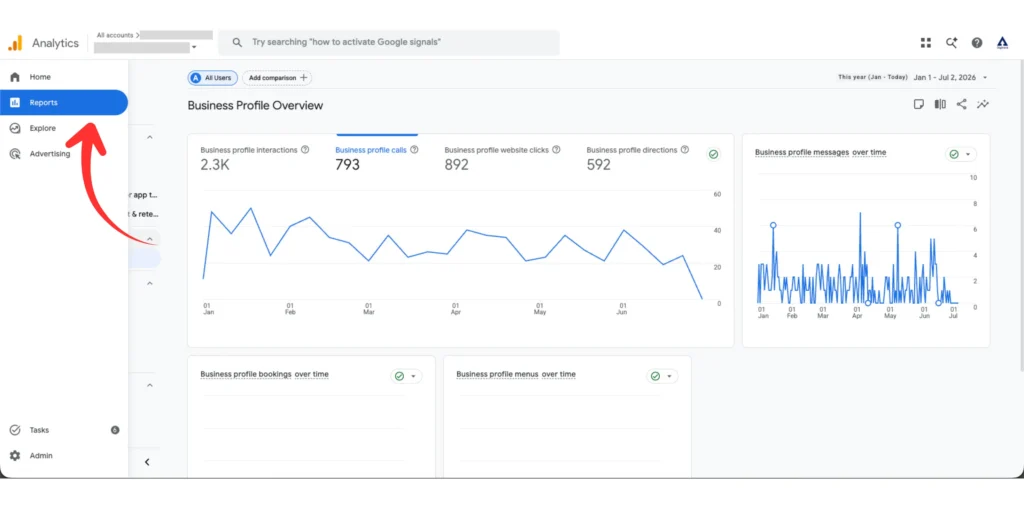
From the left-side menu in GA4, click Reports. This section shows different reports related to your website and connected Google products, such as:
- Traffic reports
- Engagement reports
- Conversion reports
- Search Console data
- Connected business data
Open the Google Business Profile Overview Report
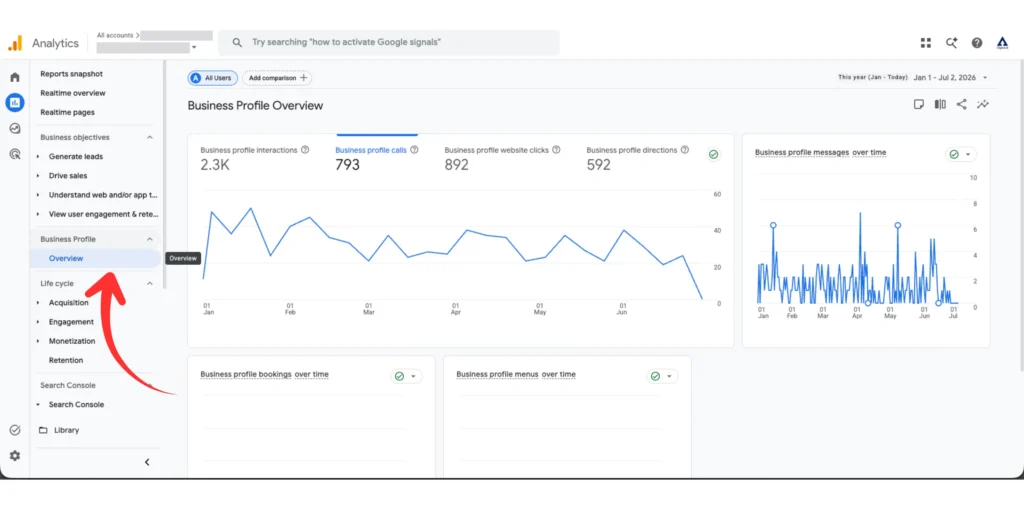
Inside Reports, scroll down and look for the Business Profile section. Click Overview to open the Business Profile Overview report. In this report, you can track actions people take after finding your business on Google Search and Maps, such as:
- Profile interactions
- Website clicks
- Phone calls
- Direction requests
- Bookings
What Metrics Can You See in the GA4 Business Profile Report?
Once the report is available in GA4, you can view important local performance metrics that show how people interact with your Google listing. These insights help you understand whether your profile is generating useful actions such as calls, website visits, direction requests, messages, bookings, and other customer interactions.
1. Google Listing Interactions
This shows the total number of actions users take on your listing. It gives you a quick idea of how actively people are engaging with your business on Google Search and Maps.
2. Calls from Your Google Profile
This shows how many users clicked to call your business from your profile. For local service businesses, clinics, agencies, restaurants, and offices, this is one of the most important lead-focused metrics.
3. Website Clicks from Google Search and Maps
This shows how many users clicked from your Google listing to your website. If website clicks are increasing, it means your profile is helping drive more local traffic to your site.
4. Direction Requests to Your Business
This shows how many users requested directions to your business location. For stores, clinics, restaurants, schools, showrooms, offices, and event venues, direction requests are a strong local intent signal.
5. Customer Messages from Your Profile
This shows message-related activity if this data is available in your report. It can help you understand how many users prefer to contact your business through messaging instead of calling or visiting your website.
6. Booking Actions from Your Listing
This shows booking-related activity if your profile has booking options connected. This is useful for appointment-based businesses such as clinics, salons, consultants, service providers, restaurants, and local offices.
7. Menu Views and Food-Related Actions
This metric is useful for restaurants, cafes, cloud kitchens, and food-related businesses. It helps you understand user interest before they call, visit, book, or place an order.
How This Report Helps Local SEO

The Business Profile report in GA4 helps you move beyond basic visibility tracking. Instead of only checking whether your business is ranking, you can understand whether your local visibility is turning into real customer actions.
With this report, you can check:
- Are people calling from your profile?
- Are users clicking through to your website?
- Are direction requests increasing?
- Are local actions improving month by month?
- Are profile updates, photos, posts, reviews, and local SEO efforts creating business impact?
This is where the report becomes useful for decision-making. For example, if calls increase after Google Business Profile optimization, it shows your local visibility is improving through better Business Profile performance and customer interactions.
For local SEO teams, business owners, and marketers, this report makes performance analysis clearer because it connects profile activity with real business outcomes. This is especially helpful when you are improving Google Business Profile ranking factors or reviewing profile updates, photos, reviews, posts, and service edits.
Common Issues While Linking Google Business Profile to GA4
While linking Google Business Profile to GA4, you may face a few setup-related issues. Most of these problems happen because of account access, property permissions, or selecting the wrong business listing.
Issue 1: Google Business Profile Is Not Showing
When your Business Profile is not showing in the selection list, it usually means you do not have manager access to that profile. Make sure you are logged in with the same Google account that has access to both GA4 and the Business Profile.
Issue 2: Google Business Profile Links Option Is Not Visible
If the Google Business Profile links option is not visible in GA4, the reason may be access permissions, property-level settings, or feature availability in your account, so you can check Google’s guide on connecting your Business Profile to Google Analytics.
Issue 3: Link Button Is Not Available
When the Link button is not available or cannot be used, you may not have Editor access to the GA4 property. In this case, ask the GA4 property admin to provide the required permission.
Issue 4: Wrong Business Profile Was Selected
If you manage multiple locations, there is a chance of selecting the wrong Business Profile during setup. Always verify the business name and address before confirming the connection. This helps avoid linking the wrong listing to the wrong GA4 property.
Issue 5: Data Is Not Showing Immediately
After linking, data may not appear instantly in the Business Profile report. Wait for some time and check the report again. Also confirm that your profile is receiving actions such as calls, website clicks, direction requests, bookings, or messages.
Best Practices After Linking Google Business Profile to GA4
Once the connection is created, do not stop there. Use the report actively to understand how your local visibility is turning into real customer actions. After you link Google Business Profile to GA4, the data can help you make better decisions for local SEO, website performance, and client reporting.
1. Track Monthly Local SEO Performance
Check calls, website clicks, direction requests, and interactions every month. This helps you understand whether your local SEO work is improving actual business actions, not just visibility.
2. Compare Before and After Profile Optimization
If you update categories, services, photos, posts, reviews, or business descriptions, compare the performance before and after the changes. This helps you understand which updates are improving your Google Business Profile tracking results.
3. Improve Landing Pages
If website clicks from your profile are high but enquiries are low, review the landing page connected to your listing. Check whether:
- The phone number is clearly visible
- The WhatsApp button is easy to find
- The enquiry form is simple
- The offer or service message is clear
- The page loads quickly on mobile
You can also use this data along with a proper SEO audit to find whether the issue is with visibility, landing pages, enquiry forms, or conversion tracking.
4. Report Better to Clients
For agencies and marketers, the Business Profile report in GA4 is useful for client reporting. Instead of only showing rankings or impressions, you can show real actions such as calls, website clicks, direction requests, and bookings. This makes the report more business-focused.
Who Should Link Google Business Profile to GA4?
This setup is useful for almost every local business that gets customers through Google Search or Maps. With GA4 Google Business Profile Integration, businesses can understand how their listing supports website visits, calls, directions, bookings, and other local actions.
It is especially useful for:
- Clinics and hospitals
- Law firms
- Real estate businesses
- Restaurants and cafes
- Schools and colleges
- Event venues
- Salons and spas
- Gyms and fitness studios
- Local stores and showrooms
- Digital marketing agencies
- Service businesses
- Home service providers
- Consultants and professionals
If customers find your business through Google Search or Maps, learning how to link Google Business Profile to GA4 is a smart move because it helps you track local performance more clearly inside Google Analytics.
FAQs on Linking Google Business Profile to GA4
Here are some common questions businesses ask before setting up GA4 Google Business Profile Integration. These answers will help you understand access, reporting, tracking, and how this setup supports local SEO performance.
1. Can I link multiple Google Business Profiles to one GA4 property?
Yes. One Google Analytics property can be linked to multiple Google Business Profiles. This is useful if you manage more than one business location under the same GA4 property.
2. Do I need admin access to link Google Business Profile to GA4?
You need the required access to both platforms. In GA4, you need permission to create the product link. For Google Business Profile, you need access to manage the business listing.
3. Where can I see Google Business Profile data in GA4?
After linking, you can view the Business Profile report in GA4 from this path:
GA4 → Reports → Business Profile → Overview
4. What data can I see after linking GBP to GA4?
You can view important local metrics such as interactions, calls, website clicks, direction requests, bookings, menu actions, and other local business actions.
5. Is this useful for local SEO reporting?
Yes. Google Business Profile tracking inside GA4 helps connect profile performance with website and local business data. This makes local SEO reporting clearer and more action-focused.
6. Why is my Google Business Profile not showing in GA4?
The most common reason is a permission mismatch. Make sure you are using the same Google account that has access to both GA4 and the Google Business Profile listing.
7. Will linking GBP to GA4 improve rankings?
No. Linking itself does not directly improve rankings. However, it helps you measure local SEO performance better, so you can make smarter optimization decisions based on real customer actions.
Final Thoughts
Linking Google Business Profile to GA4 is a simple setup, but it can make your local SEO reporting much stronger. Once connected, you can track calls, website clicks, direction requests, bookings, interactions, and other important customer actions inside GA4.
For local businesses, this means less guessing and better decision-making. Instead of checking Google Business Profile and website analytics separately, you can review important local performance data in one place.
At Digirank, we help businesses with digital marketing services, GA4 setup, Google Business Profile tracking, local SEO, Google Ads tracking, and conversion measurement so they can clearly see what is working and where leads are coming from.
Need help setting up GA4 and Google Business Profile tracking for your business? Contact Digirank today.